
Teardown VR: How to Play With Motion Controls on PC
Play Teardown VR on PC with motion controls. Learn the mod requirements, installation steps, comfort settings, and fixes for common VR headset problems.
Jump to
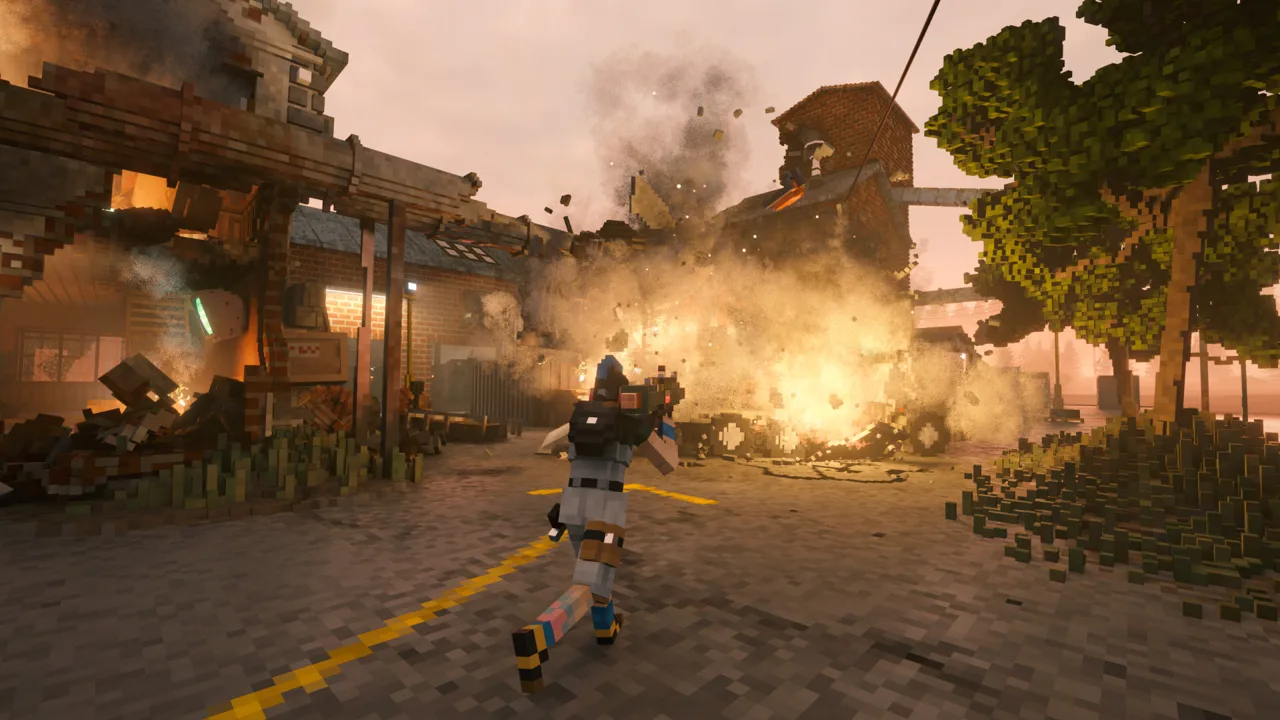
Can You Play Teardown in VR?
Teardown VR puts the sledgehammer in your tracked hand and brings destructible buildings into headset view through an experimental PC mod. That changes how you aim tools, pick up debris, and explore the voxel sandbox. You’ll need the Windows Steam version, SteamVR, and both parts of the mod to get started.
This is a fan-made conversion with head tracking, motion controls, and hand-based grabbing. It is not affiliated with or endorsed by Tuxedo Labs, and it supports single-player only.
The appeal is easy to understand: aim a blowtorch with your wrist, lift a loose object with a controller grip, or examine the shortcut you just blasted through a wall. Expect an experimental experience with rendering compromises, bugs, and uneven compatibility with other mods.
What You Need Before Installing
Prepare these components:
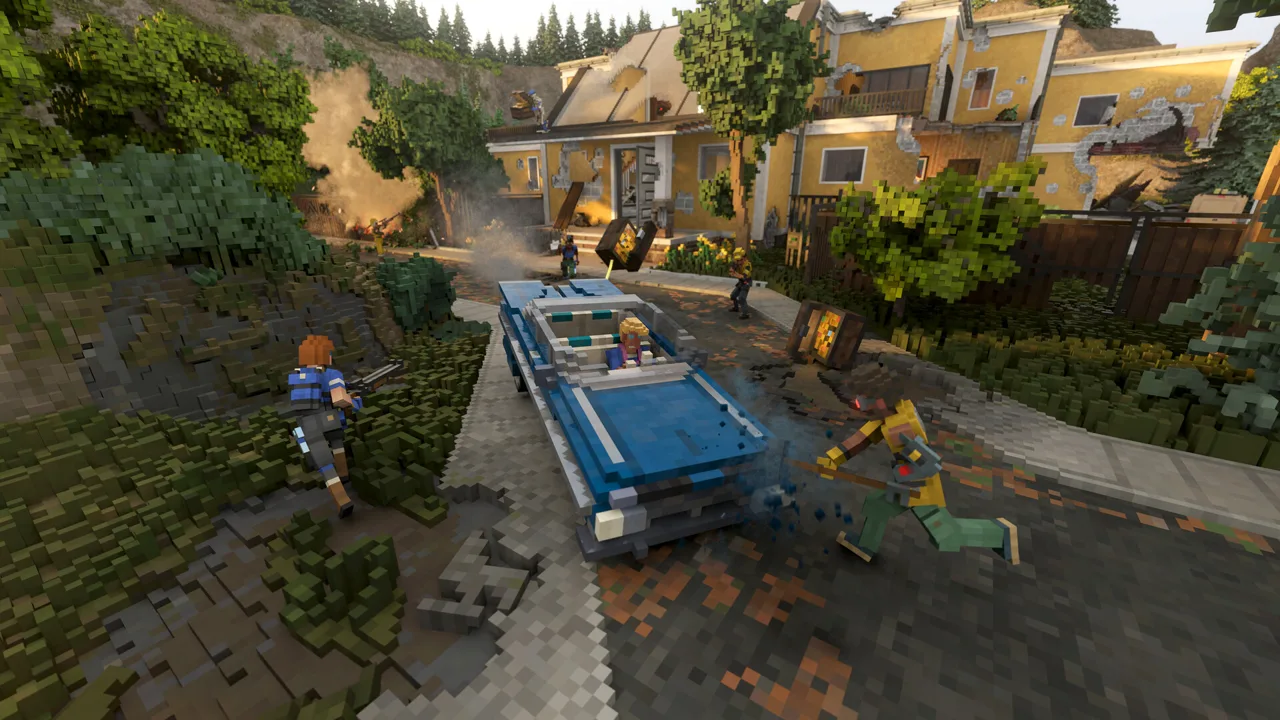 Image: Steam / Tuxedo Labs
- Windows 10 or Windows 11
- Teardown on Steam using its current Direct3D 12 version
- SteamVR
- A PC VR headset and motion controllers
- The native
dxgi.dllcomponent and matching Lua mod
The tested headset setup is Meta Quest 3 through Steam Link. Other SteamVR headsets remain untested. An NVIDIA RTX graphics card is recommended for the conversion; the base game’s minimum requirements are not a VR performance target.
Quest 3 acts as the headset for a game running on your PC. This setup requires a Windows computer and does not install Teardown as a standalone Quest game.
Subscribing through Steam Workshop is only part of the installation. The Workshop component contains the Lua mod and requires the native dxgi.dll from the release package.
How to Install the PC VR Mod
Use the release ZIP containing the installer and native component, then follow this sequence:
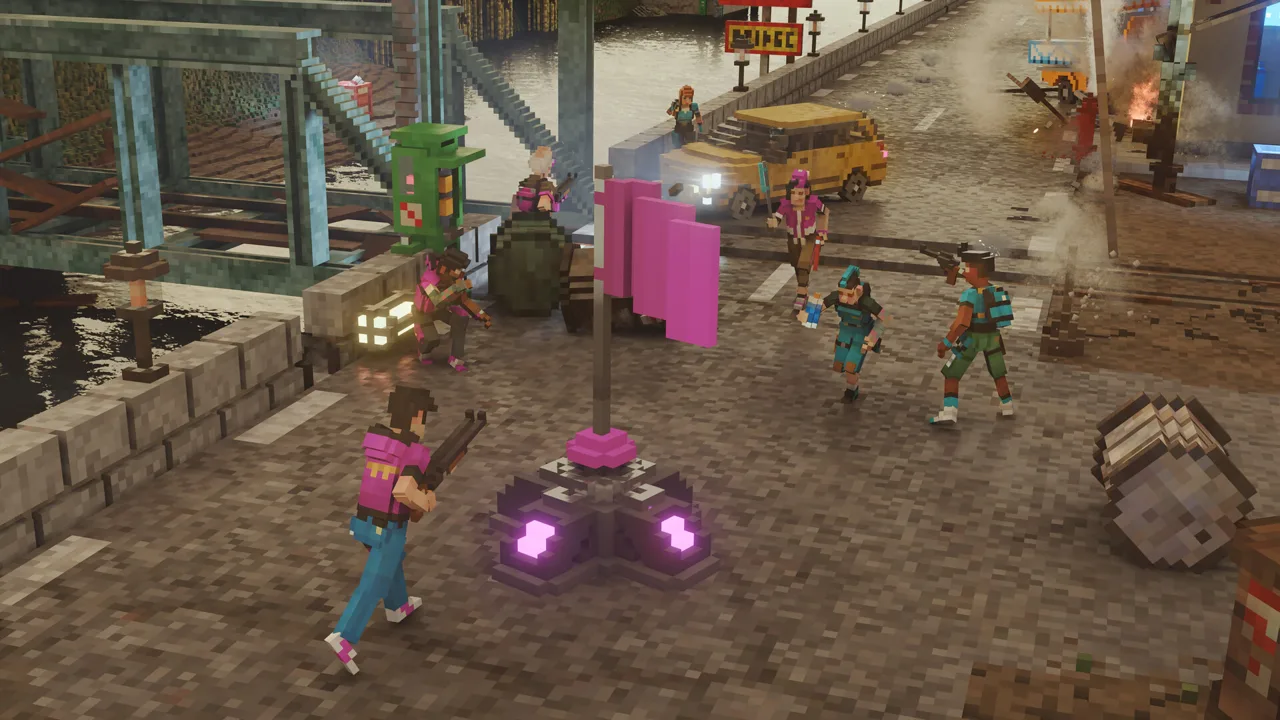 Image: Steam / Tuxedo Labs
- Close Teardown.
- Extract the release ZIP.
- Run
Install.bat. It locates the game directory, copiesdxgi.dllthere, and installs the local Lua component inDocuments\Teardown\mods\TeardownVR. - Start SteamVR and connect your headset. For the tested Quest 3 setup, launch Steam Link inside the headset.
- Launch Teardown from Steam.
- Open Mods and enable one copy of the conversion. Choose either the Workshop copy or Local files > Teardown VR Mod.
- Load a Sandbox level to try the controls without mission objectives.
Never enable the Workshop and local copies together. They provide the same Lua component.
When updating, keep the native DLL and Lua component on the same version. The installer backs up older settings files using a name such as teardown_vr.ini.v0.20.bak, then the mod generates fresh settings at the next launch. Transfer any settings you want to retain.
If the native release download returns a 404 error, pause installation until that package is accessible. The Workshop subscription cannot replace the missing DLL.
Motion Controls and Viewing Modes
Tools normally sit in your right hand and follow its orientation. Squeeze a grip near a loose object to pick it up, then release while swinging to throw it.
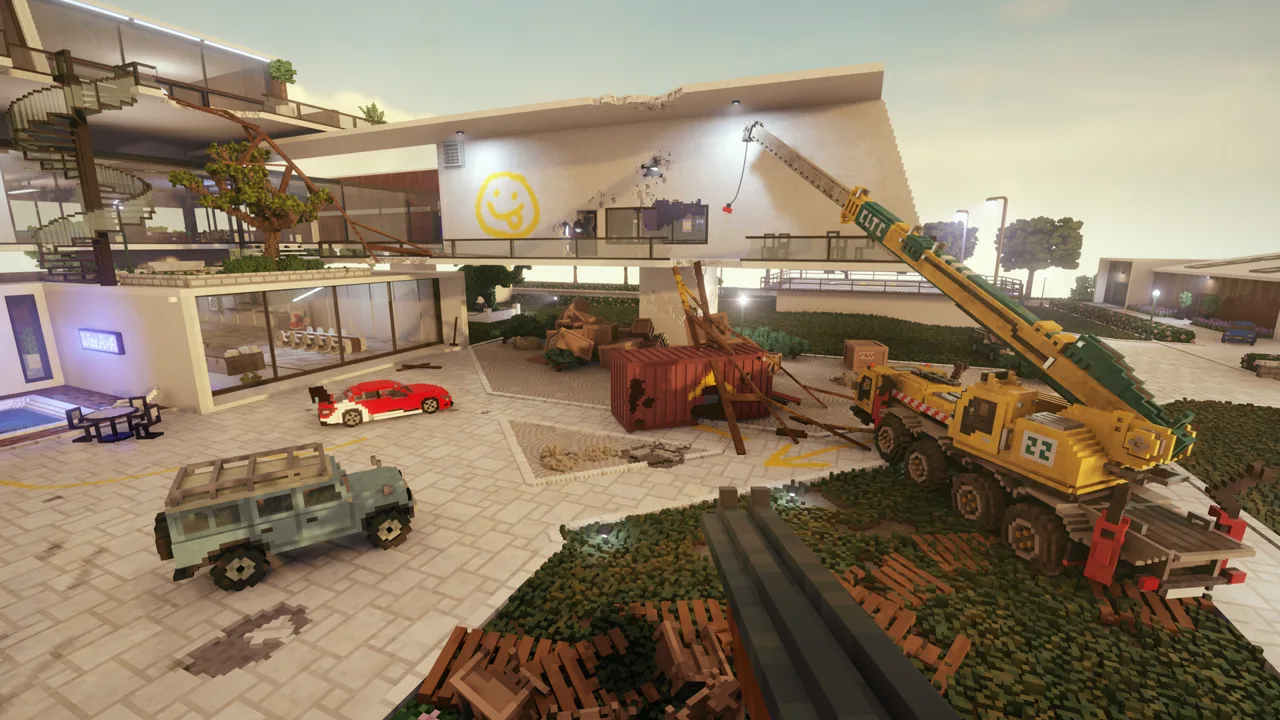 Image: Steam / Tuxedo Labs
The main controls are:
- Right trigger: Use the equipped tool or click a menu item.
- Left grip: Grab and throw with your left hand.
- Right grip: Grab nearby objects; away from objects, use the game’s normal grab.
- Left stick: Walk in the direction you’re looking.
- Right stick left/right: Turn, with 30-degree snap turning by default.
- Right stick down/up: Select the next or previous tool.
- B: Hold to crouch.
- X: Interact.
- Y: Open the map.
- Left stick click: Toggle the flashlight.
- Right stick click: Recenter the view.
Menus and the map appear on a flat screen, operated with a controller laser pointer and trigger.
Hold the left menu button for about half a second to cycle through these viewing modes:
| Mode | What you see | Main tradeoff |
|---|---|---|
| Stereo | A 3D view with depth | Alternating eye rendering needs a high frame rate; fast movement can look doubled |
| Mono | The same image in both eyes, with head tracking | Smoother presentation without stereoscopic depth |
| Theater | The game on a large virtual screen | A flat-screen presentation inside the headset |
For left-handed play, set left_handed = yes in teardown_vr.ini. Set aim_mode = head to use head aiming instead of hand aiming.
Graphics Settings and Performance
The November 3, 2026 update added NVIDIA DLSS and AMD FSR to Teardown under Options > Graphics > Upscaling. These options offer another way to balance image quality and frame rate, with gains depending on your hardware and settings.
Start with the conversion’s required game settings:
| Game setting | Value |
|---|---|
| Barrel distortion | Off |
| Motion blur | Off |
| Depth of field | Off |
| Render scale | 100% |
| Head bob | 0 |
| Tool sway | Off |
Use snap turning while getting comfortable. If stereo looks choppy, switch to mono; use theater mode for a flat presentation. Stop and take a break if you feel uncomfortable.
Prioritize smooth movement before increasing resolution. Stereo draws the eyes one after another, and extensive destruction adds more physics activity to an already demanding game.
The conversion’s image is softer than a native VR game. Its sharpening setting defaults to sharpen = 0.7; increasing resolution is another option, but it costs performance. Avoid stacking higher resolution and demanding destruction until basic movement feels smooth.
Experimental Hands, Body, and Tool Compatibility
Version v0.22 adds solid hands, punching, a visible character body, and lower-leg collisions. These features had not been tested in a headset in that version, so keep their individual switches handy.
Solid hands require hand_style = gloves. With collisions enabled, hands stop against walls and push objects. A fast hand movement can punch loose objects without a button press. The default grab_max_mass = 120 limits hand lifting to objects weighing up to 120 kg; heavier objects can be pushed.
Use these settings to simplify the experience:
- Set
hand_collision = noif hands shake or catch against surfaces. - Set
hand_punch = noto disable punching. - Set
hand_strength = weakif punches are too forceful. - Set
show_body = noif the body obstructs your view. - Set
body_collision = noif lower legs catch on stairs or kick unwanted objects. - Try
show_body = noorhand_steady = noif v0.22 runs more slowly.
Some tools from other mods aim with your head instead of your hand. Try the standard tools before adding custom weapons so you can learn the default behavior.
Fixing Startup, Input, and Display Problems
Controllers do nothing: Click the Teardown window on your monitor to give it keyboard focus. Keep that window visible and avoid minimizing it.
The view shakes while walking: Set Head bob to 0 and disable Tool sway under Options > Input.
Your position feels wrong: Click the right stick to recenter. With the game window focused, F7 also recenters the view.
You changed the configuration: Press F6 with the game window focused to reload teardown_vr.ini.
The game fails to launch after installation: Check whether Windows Security or your antivirus quarantined the unsigned dxgi.dll. Do not assume a file is safe just because of how it loads. Inspect any security warning before deciding how to proceed.
For troubleshooting, look for teardown_vr.log in the Teardown installation folder. A crash can also create teardown_vr_crash.log alongside it.
To remove the conversion, close the game and run Uninstall.bat, or delete the mod’s dxgi.dll from the game directory. You can also remove the local Documents\Teardown\mods\TeardownVR folder.
Continue with
 Teardown Steam Guide: Multiplayer, Mods, and PC SpecsExplore Teardown Steam features, 12-player multiplayer, Workshop mods, PC requirements, DLC, and graphics updates before planning your destructive heist.
Continue exploring
Teardown Beginner Guide: Plan Heists and Escape Faster
Use this Teardown beginner guide to plan heists, build shortcuts, manage alarms, find valuables, and upgrade tools. Plan your next escape with confidence.
Teardown Missions Guide: Campaign Routes and Heist Tips
Use our Teardown missions guide to plan heists, move safes, complete optional objectives, handle robots, and clear the campaign with smarter escape routes.
Join the community
Official channels for news, updates and player help: